Components
A field guide to the type, code, and figures I use to explain how my projects work.
Foundations
Colours
--background--card--secondary--border--muted-foreground--foreground--primary--background--card--secondary--border--muted-foreground--foreground--primaryUsage
Use semantic variables so surfaces, type, and accents follow the reader’s theme.
background: var(--card);
color: var(--foreground);
Type scale
Build the plan. Review the command.
planner.pyBuild the plan. Review the command.
planner.pyUsage
Use the sans family for reading and the monospace family for technical labels.
<h2 className="text-3xl font-semibold">Execution flow</h2>
<code className="font-mono text-sm">planner.py</code>
Writing
Text
Review the plan
The planner turns a request into a sequence of commands. Check each command before pressing Y.
Review the plan
The planner turns a request into a sequence of commands. Check each command before pressing Y.
Usage
Link to the supporting article and mark commands, keys, or filenames inline.
The **planner** returns a structured plan. Inspect the
`command` before you [confirm execution](/blog/building-helpme-cli).
Lists
- Read the request.
- Validate the suggested command.
- Confirm execution.
- Read the request.
- Validate the suggested command.
- Confirm execution.
Usage
Choose a numbered list when the order of actions matters.
1. Read the request.
2. Validate the suggested command.
3. Confirm execution.
Quote
“Consistency with one mentor beats dabbling with five.”
“Consistency with one mentor beats dabbling with five.”
Usage
Use a blockquote for a sentence from the text. Link the passage when the source is elsewhere.
> Consistency with one mentor beats dabbling with five.Table
| Service | Responsibility |
|---|---|
| Planner | Generate the command plan |
| Validator | Inspect each command |
| Executor | Run confirmed steps |
| Service | Responsibility |
|---|---|
| Planner | Generate the command plan |
| Validator | Inspect each command |
| Executor | Run confirmed steps |
Usage
Keep headers explicit. Wide tables can scroll inside the reading column.
| Service | Responsibility |
| --- | --- |
| Planner | Generate the command plan |
Footnotes
Usage
Pair each note with a unique reference and a return link. Use distinct IDs when rendering two examples on a page.
HelpMe supports local inference.[^1]

[^1]: Ollama runs the model locally.
Terms
Embedding
A numerical representation of an input. Reverse Chain compares embeddings to retrieve APIs relevant to a task.
Explore Reverse ChainEmbedding
A numerical representation of an input. Reverse Chain compares embeddings to retrieve APIs relevant to a task.
Explore Reverse ChainUsage
Put a definition one tap or keypress away from its first use.
<details>
  <summary>Embedding</summary>
  A numerical representation of an input.
</details>
Engineering
Code block
{
  "steps": [{
    "command": "find . -name '*.py' -mtime -7"
  }]
}{
"steps": [{
"command": "find . -name '*.py' -mtime -7"
}]
}Usage
Use fenced code in articles. The shared code block preserves formatting and includes a copy control.
<CodeBlock><code>{JSON.stringify(plan, null, 2)}</code></CodeBlock>Terminal
$ helpme "find recent Python files"
Suggested command:
find . -name '*.py' -mtime -7
Execute? [Y/n] y
./services/planner.py
$ helpme "find recent Python files"
Suggested command:
find . -name '*.py' -mtime -7
Execute? [Y/n] y
./services/planner.py
Usage
Show the command and its output together so a reader can follow the session.
<pre aria-label="Terminal transcript">{lines.join("\n")}</pre>Diff
- execute(plan)+ if approved(plan):+ execute(plan)
- execute(plan)+ if approved(plan):+ execute(plan)
Usage
Use both signs and colour to distinguish removed and added lines.
```diff
- execute(plan)
+ if approved(plan):
+     execute(plan)
```
Terminal replay
$ helpme "find recent Python files"
Suggested command:
find . -name '*.py' -mtime -7
Execute? [Y/n] y
./services/planner.py
$ helpme "find recent Python files"
Suggested command:
find . -name '*.py' -mtime -7
Execute? [Y/n] y
./services/planner.py
Usage
Supply each line of a session. Replay on demand or read the complete transcript with reduced motion.
<TerminalReplay lines={session} />Supporting content
Callout
Usage
Pull a single decision or caution out of the reading flow.
<aside aria-label="Execution note">Review the generated command before confirming.</aside>Stats
- Data sources integrated
- 80+
- Procurement warehouse
- 1
- Data sources integrated
- 80+
- Procurement warehouse
- 1
Usage
Pair each number with the unit and context a reader needs to interpret it.
<dl><Stat value="80+" label="Data sources integrated" /></dl>Figure
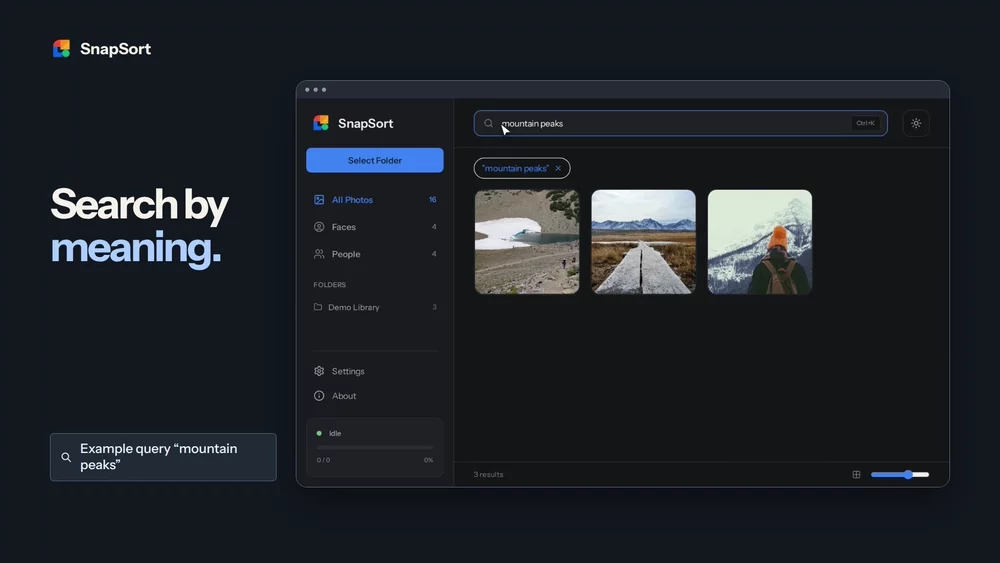
Usage
Give a screenshot a descriptive alternative and use a responsive image size.
<figure><img src={image} alt="SnapSort photo browser" width={720} height={405} /></figure>Source reference
Usage
Give readers a direct route from an implementation detail to its source.
<SourceRef href="/blog/building-helpme-cli" label="Building HelpMe" detail="Architecture and execution" />Charts and media
Bar chart
Usage
Compare measurements with the same unit. The longest bar sets the scale.
<BarChart unit="ms" rows={[{ label: "Read", value: 12 }, { label: "Index", value: 48 }]} />Flow diagram
- Request
- Plan
- Validate
- Confirm
- Request
- Plan
- Validate
- Confirm
Usage
Keep the diagram in reading order and give each step an action.
<Flow steps={["Request", "Plan", "Validate", "Confirm"]} />Line chart
Files
Minutes
Files
Minutes
Usage
Provide ordered numeric points and label both axes, including units.
<LineChart xLabel="Minutes" yLabel="Files" points={[{x: 0, y: 0}, {x: 1, y: 30}, {x: 2, y: 80}]} />Clip
Usage
Start with the project poster. A click loads the local video and reveals playback controls.
<Clip src="/assets/project/snapsort-demo.mp4" poster="/assets/project/snapsort-preview.webp" title="SnapSort walkthrough" />Attributed quote
“Consistency with one mentor beats dabbling with five.”
How to reach LeetCode Knight
“Consistency with one mentor beats dabbling with five.”
How to reach LeetCode Knight
Usage
Place the author and the linked source directly after the quotation.
<figure><blockquote>{quote}</blockquote><figcaption>{author} · <cite>{source}</cite></figcaption></figure>Figure shell
- Plan
- Validate
- Execute
- Plan
- Validate
- Execute
Usage
Give a diagram or graphic a shared frame and a short title.
<FigureShell title="HelpMe pipeline"><Flow steps={["Plan", "Validate", "Execute"]} /></FigureShell>